Docker & Containerization Troubleshooting
This guide covers troubleshooting for Docker and Docker Compose issues when building and running OpenDSO applications.
Common Use Cases
This guide uses real OpenDSO services and applications to demonstrate troubleshooting:
- topology-genesis-svc: Core topology service managing the system topology
- topology-node-svc: Topology node service with OpenFMB handlers (SwitchStatusHandler, RecloserStatusHandler)
- oadr-service-vtn: OpenADR Virtual Top Node service for demand response
- OpenFMB adapters: Protocol adapters for field devices (airswitch, recloser configurations)
Container Won't Start
Symptom
Container exits immediately or shows status "Exited (1)"
Diagnosis
# Check container status
docker ps -a | grep <container-name>

# View container logs
docker logs <container-name>

# Inspect container
docker inspect <container-name>
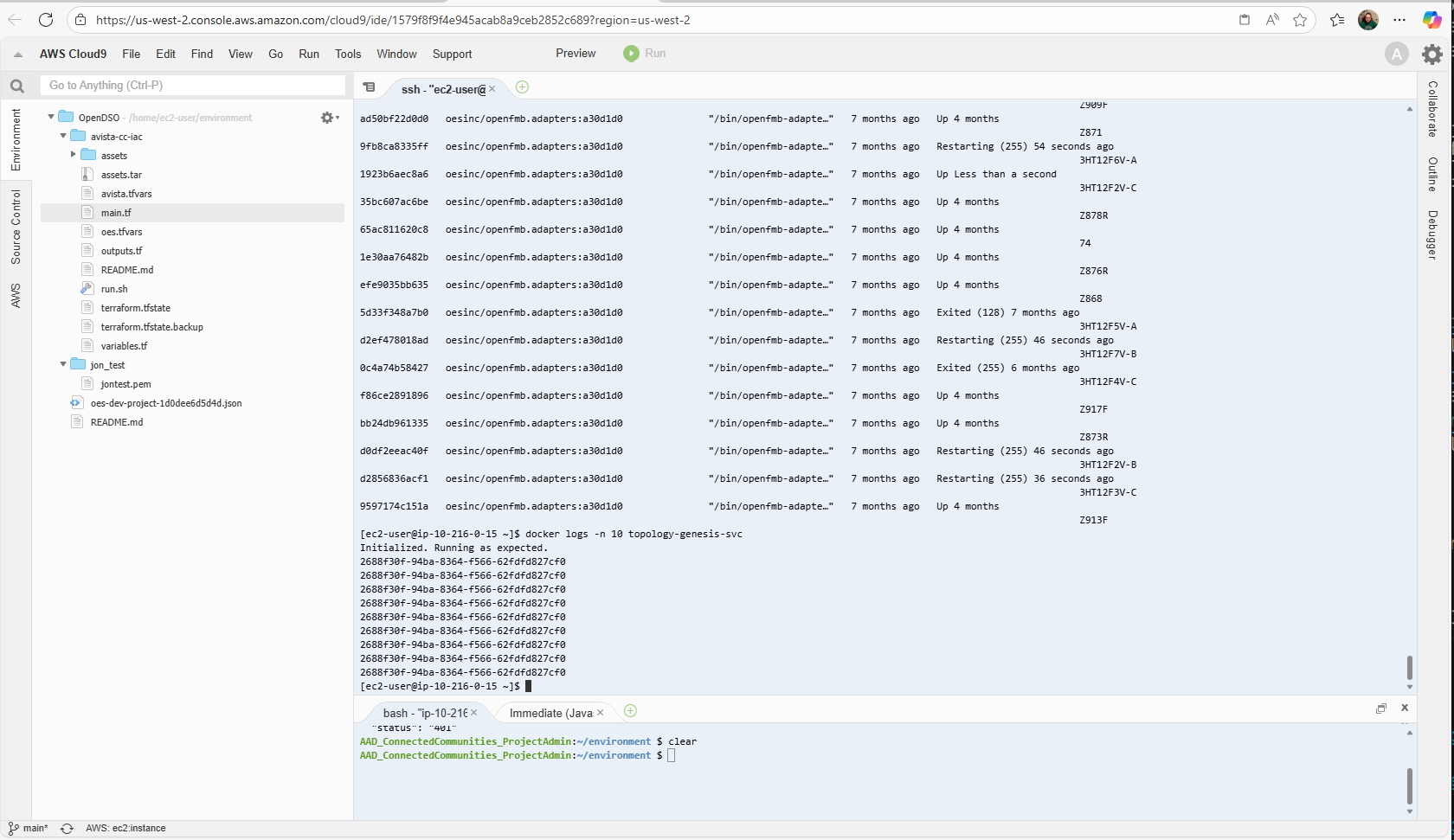
Example: Viewing logs from topology-genesis-svc
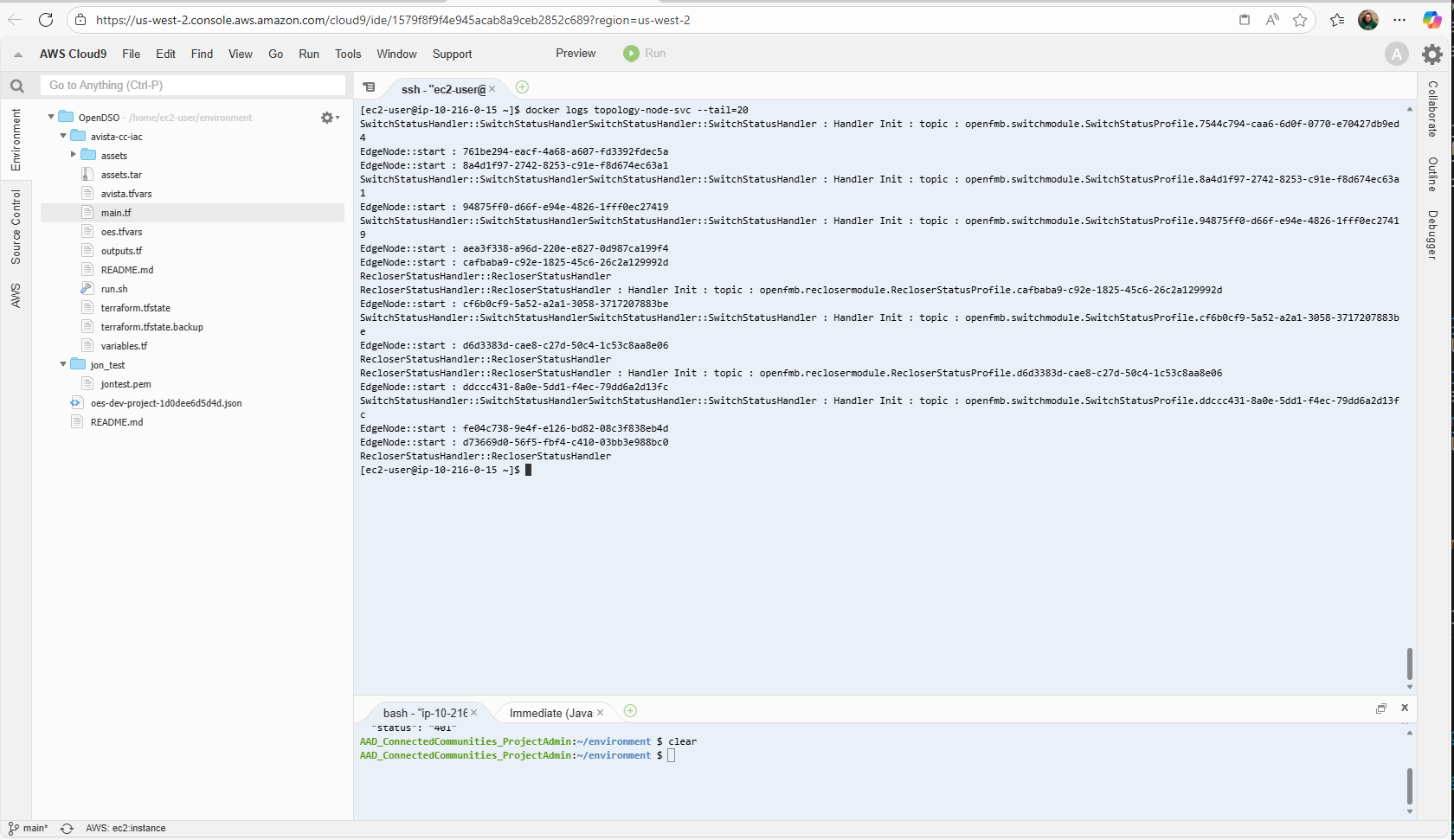
Example: Viewing logs from topology-node-svc showing OpenFMB handlers
Common Causes & Solutions
1. Application Error on Startup
Example: topology-node-svc service logs
# Check logs for error messages
docker logs topology-node-svc --tail=20

# Common errors:
# - "Cannot find module"
# - "EADDRINUSE: address already in use"
# - "Connection refused" (to NATS/MongoDB)
Solution:
# Check if dependencies are installed
docker exec -it topology-node-svc ls /app

# Rebuild with fresh install
docker-compose build --no-cache topology-node-svc
docker-compose up -d topology-node-svc
2. Port Already in Use
Example: Service can't bind to port
# Check what's using the port
sudo netstat -tulpn | grep :4222
sudo lsof -i :4222

# Or use ss
ss -tulpn | grep :4222
Solution:
# Option 1: Stop the conflicting service
docker stop <conflicting-container>

# Option 2: Change port mapping in docker-compose.yml
# Change "4222:4222" to "4223:4222"
3. Missing Environment Variables
Example: App requires NATS_SERVER but it's not set
# Check container environment
docker exec topology-node-svc env

# Check compose configuration
docker-compose config
Solution:
# In docker-compose.yml
services:
  topology-node-svc:
    environment:
      - NATS_SERVER=nats://nats-main:4222
      - LOG_LEVEL=debug
4. Healthcheck Failure
# Check healthcheck status
docker inspect --format='{{json .State.Health}}' <container-name> | jq

# Test healthcheck manually
docker exec <container-name> curl -f http://localhost:3000/health
Solution:
A failing healthcheck is usually caused by environment or configuration issues. Investigate logs and check to make sure the environment files are where they're expected to be.
In the case that the container just needs more time to startup, you can change the start_period, like this example shows:
# Adjust healthcheck in docker-compose.yml
healthcheck:
  test: ["CMD", "curl", "-f", "http://localhost:3000/health"]
  interval: 30s
  timeout: 10s
  retries: 5
  start_period: 60s  # Give app more time to start
Network Connectivity Issues
Containers Can't Communicate
Symptom
Service can't connect to NATS, MongoDB, or other services
Example: topology-node-svc can't connect to NATS
# Log shows: Error: connect ECONNREFUSED nats-main:4222
docker-compose logs topology-node-svc
Diagnosis
# Check Docker network
docker network ls
docker network inspect opendso

# Verify all containers are on same network
docker inspect -f '{{.NetworkSettings.Networks}}' nats-main
docker inspect -f '{{.NetworkSettings.Networks}}' topology-node-svc

# Test connectivity
docker exec topology-node-svc ping nats-main
docker exec topology-node-svc nc -zv nats-main 4222
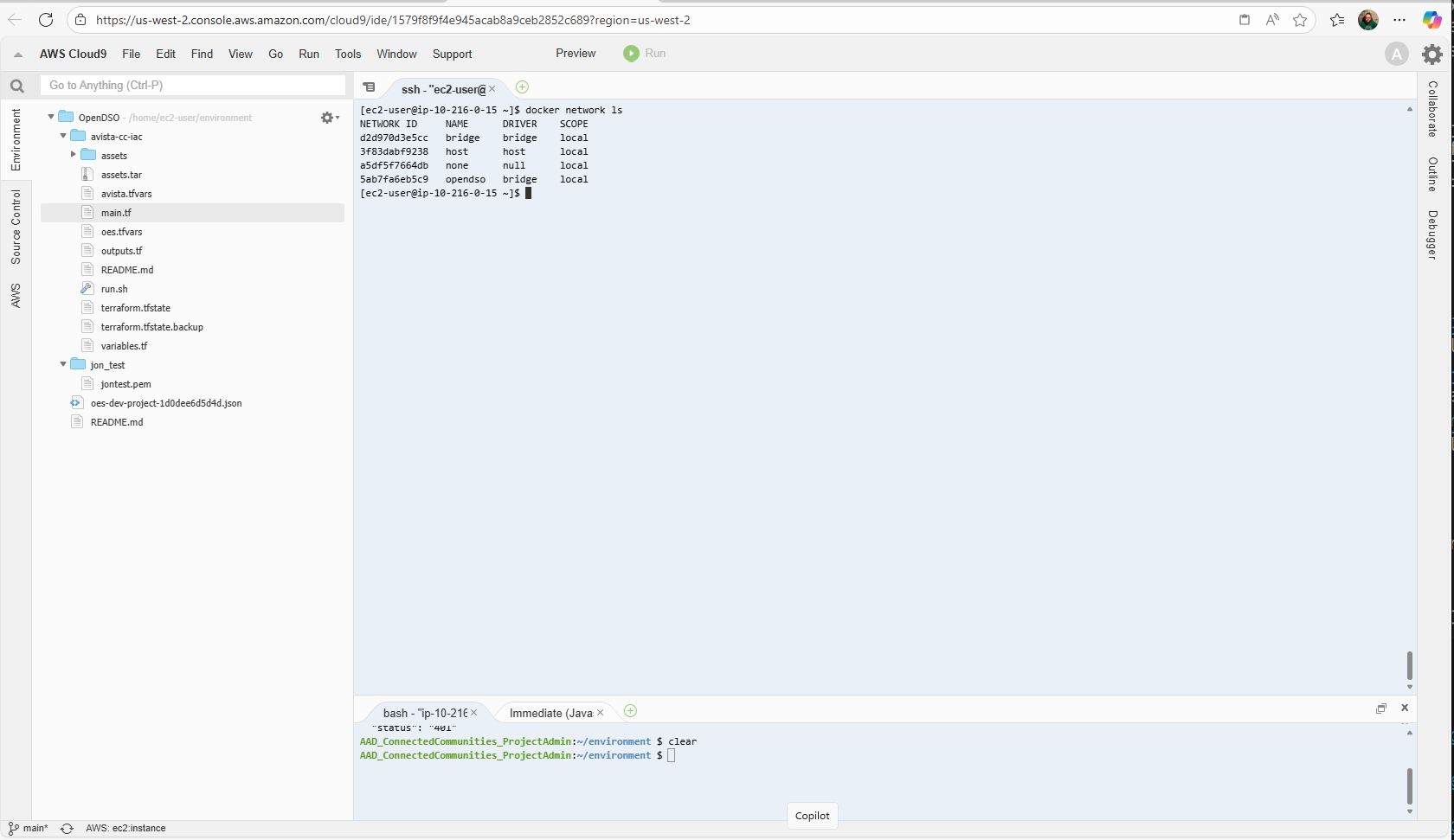
Example: Listing Docker networks
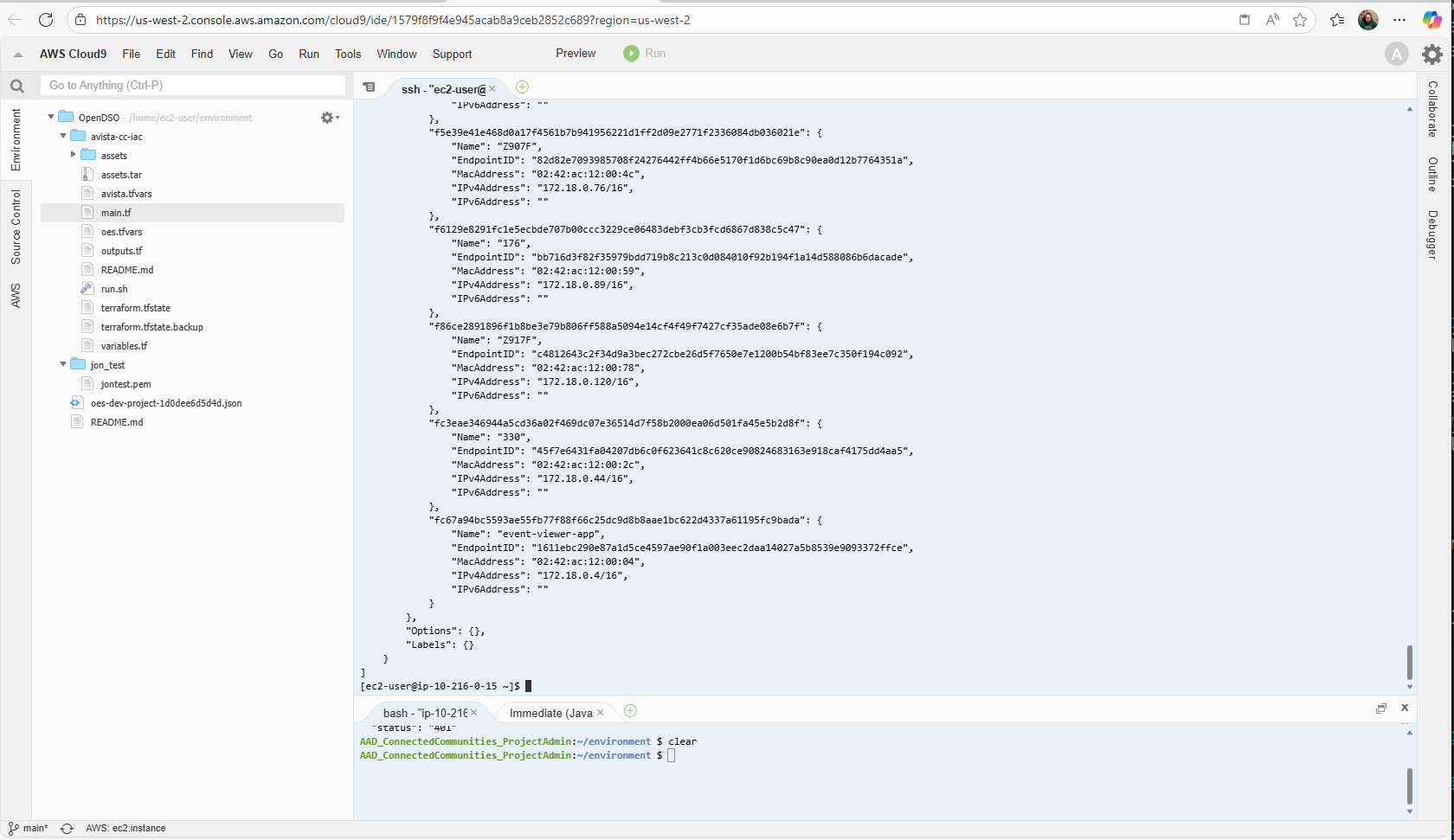
Example: Inspecting the opendso network to see connected containers
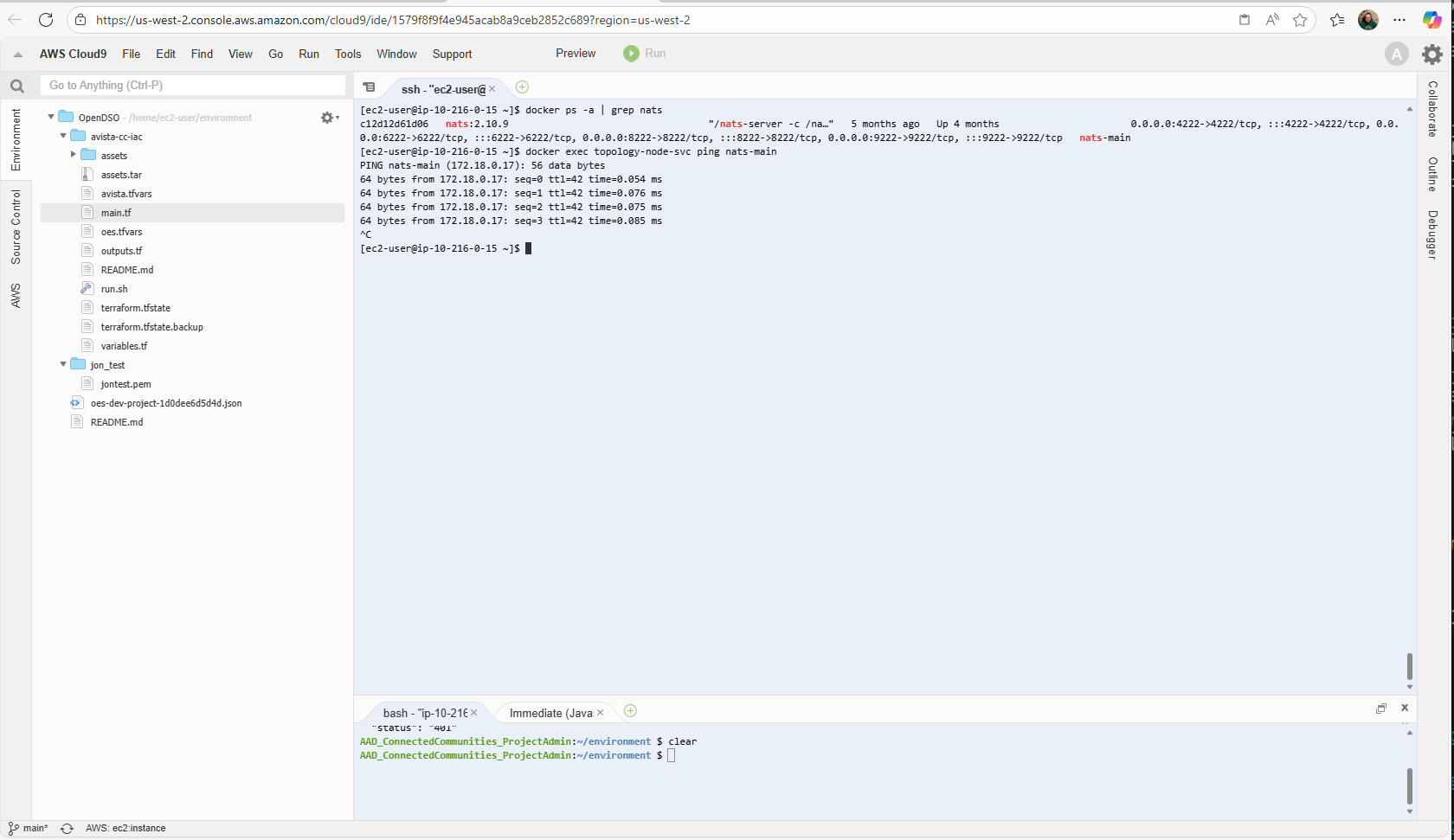
Example: Testing NATS connectivity with ping
Solutions
1. Container Not on Network
# In docker-compose.yml, ensure all services use same network
services:
  topology-node-svc:
    networks:
      - opendso

  nats-main:
    networks:
      - opendso

networks:
  opendso:
    driver: bridge
2. Service Not Ready
Solution: Add depends_on and healthcheck
services:
  topology-node-svc:
    depends_on:
      nats-main:
        condition: service_healthy
    networks:
      - opendso

  nats-main:
    healthcheck:
      test: ["CMD", "nc", "-zv", "localhost", "4222"]
      interval: 10s
      timeout: 5s
      retries: 5
    networks:
      - opendso
3. Wrong Service Name / DNS
# Test DNS resolution
docker exec topology-node-svc nslookup nats-main
docker exec topology-node-svc getent hosts nats-main

# Use Docker service name, not container name
# Good:  nats://nats-main:4222
# Bad:   nats://opendso-nats-main-1:4222
Volume and Storage Issues
Disk Space Full
# Check disk usage
df -h
du -sh /var/lib/docker/*

# Check Docker space usage
docker system df
docker system df -v
Solutions
Clean Up Unused Resources
The below commands will remove unused containers and images. Be sure to only run these commands if you're confident of resulting affects on the system.
# Remove stopped containers
docker container prune

# Remove unused images
docker image prune -a

# Remove unused volumes
docker volume prune

# Remove everything unused
docker system prune -a --volumes

# Remove specific old images
docker images | grep "<none>"
docker rmi $(docker images -f "dangling=true" -q)
Volume Mount Issues
Example: Config files not visible in container
# Check volume mount
docker inspect <container-name> | jq '.[0].Mounts'

# Verify file exists on host
ls -la /path/to/config/file

# Check permissions
Solution:
# Use absolute paths for volumes
services:
  topology-node-svc:
    volumes:
      - ${PWD}/config:/app/config:ro  # Read-only
      - ${PWD}/logs:/app/logs        # Read-write
Resource Constraint Issues
Container Using Too Much Memory
# Monitor resource usage
docker stats

# Check specific container
docker stats topology-node-svc --no-stream
Solution: Set resource limits
services:
  topology-node-svc:
    deploy:
      resources:
        limits:
          cpus: '1.0'
          memory: 1G
        reservations:
          cpus: '0.5'
          memory: 512M
System Out of Memory
# Check system memory
free -h
cat /proc/meminfo

# Check Docker memory usage
docker system df
Solution:
# Increase Docker memory limit (Docker Desktop)
# Settings → Resources → Memory

# Clean up unused containers
docker container prune
docker system prune -a
Nginx-Specific Issues (edo-adr)
403 Forbidden Error
# Check nginx logs
docker logs edo-adr-app

# Check file permissions
docker exec edo-adr-app ls -la /usr/share/nginx/html
Solution:
# Ensure files have correct permissions
FROM nginx:alpine
COPY --from=build --chown=nginx:nginx /app/dist /usr/share/nginx/html
Image Management Issues
Wrong Image Version Running
# Check running image
docker ps --format 'table {{.Names}}\t{{.Image}}'

# Check available images
docker images | grep topology-node-svc

# Check image ID matches
docker inspect topology-node-svc | jq '.[0].Image'
docker images topology-node-svc --format '{{.ID}}'
Solution:
# Remove old containers and images
docker-compose down
docker rmi $(docker images -q topology-node-svc)

# Rebuild and restart
docker-compose build topology-node-svc
docker-compose up -d topology-node-svc
Image Pull Fails
# Error: pull access denied, repository does not exist or requires authentication
Solution:
# Login to Docker registry
docker login

# Or for private registry
docker login registry.example.com

# Specify credentials in docker-compose.yml
services:
  my-service:
    image: registry.example.com/myapp:latest
    # Pull credentials via environment or config.json
Docker Compose Command Issues
Docker Compose Command
OpenDSO uses the docker-compose CLI (with hyphen).
# Check Docker Compose version
docker-compose version

# If not installed
sudo apt-get update
sudo apt-get install docker-compose

# Basic commands
docker-compose up -d
docker-compose down
docker-compose logs -f
Profile Not Starting Services
# Issue: ./run.sh -p api -c starts but containers not created

# Check profiles in docker-compose.yml
docker-compose --profile api config

# Verify service has profile
services:
  api:
    profiles:
      - api
      - all
Solution:
# Use correct profile name
./run.sh -p api -c

# Start multiple profiles
./run.sh -p nats -p api -c

# Start all services
./run.sh -p all -c
Restarting & Reinstantiating Containers Directly
Most day-to-day operations should go through run.sh (see Local Deployment). Under the hood, run.sh simply calls Docker Compose for you — roughly:
docker compose --env-file=../config/docker/.env --profile=<profile> up -d
docker compose --env-file=../config/docker/.env --profile=<profile> down
When you're tearing down and rebuilding a specific subset of services repeatedly — for example while iterating on a single app's config, or restarting just the services tied to one circuit model — it's often faster and clearer to issue the docker compose command yourself. This lets you name exactly the profiles you want to cycle, layer in an extra environment file, and set the MODEL variable inline.
What's in the .env file (and why you must always pass it)
The base environment file (../config/docker/.env by default) is the manifest for the whole deployment. It is the same file run.sh loads by default, and it is not optional — Compose interpolates these values into compose.yaml, so omitting --env-file leaves image tags and required variables unresolved and services fail to start (or start on the wrong version).
A typical .env contains, by section:
- Image tags — a
*_TAGvalue for every OpenDSO service, app, database, proxy, and tool (e.g.GMS_API_TAG,HISTORIAN_TAG,MONGO_TAG,NATS_TAG). This is what version-pins each container. Changing a tag here and re-runningup -dis how a deployment moves a service to a new version. - Environment variables — registry/org settings such as
DOCKER_ORGandDOCKER_NETWORK, plus things like Keycloak hostname/DB URL. - Start commands — per-service command strings (e.g.
TOPOLOGY_GENESIS_SVC_CMD,OPENFMB_EVENT_SVC_CMD). Note some of these reference${MODEL}themselves — another reasonMODELmust be set, see below. - Log levels —
RUST_LOG_*toggles for the Rust services. - Config file paths — e.g.
CIRCUIT_CONFIG="../config/circuit/${MODEL}-config.yml". - Credentials — database and Keycloak/pgAdmin usernames and passwords.
The exact entries vary per deployment, but the categories above are consistent. Treat this file as sensitive — it holds credentials.
Anatomy of a Direct Command
docker-compose \
  --env-file ../config/docker/.env \
  --profile edo-adr-app \
  --profile gms-api \
  --profile mongodb \
  down -v
Reading it left to right:
| Part | Meaning |
|---|---|
docker-compose / docker compose | The Compose CLI. Use docker-compose (hyphen, v1) on older hosts; use docker compose (space, v2) on newer Docker installs. They take the same flags here. |
--env-file ../config/docker/.env | Loads the base environment file described above — image tags, variables, commands, log levels, config paths, and credentials. Always include it. |
--profile <name> (repeatable) | Restricts the command to the named profile(s). Only services tagged with one of these profiles are acted on. List one --profile flag per profile you want to include. |
down -v | Stops and removes the containers for the selected profiles, and removes their named volumes (-v). Use up -d instead to (re)create and start them detached. |
Warning:
-vdeletes the volumes for the targeted services. For stateful services (mongodb,historian,topology-genesis-svc/Postgres,oadr-service-vtn/SQLite) this erases stored data. Omit-vif you only want to recreate the containers but keep their data. See Database Backup and Restore before destroying stateful volumes.
Restarting Multiple Services with a MODEL Overlay
On a newer Docker Compose (v2) host, a common pattern when bringing a circuit-specific stack back up is to set MODEL, layer a second --env-file, and list each profile:
MODEL=ieee13 docker compose \
  --env-file ../config/docker/.env \
  --env-file ../config/docker/.env.ieee13 \
  --profile nats \
  --profile historian \
  --profile gms-api \
  --profile ui \
  --profile mongodb \
  up -d
What each new piece does:
MODEL=ieee13 ...— Sets theMODELshell variable for just this command.MODELselects which circuit/feeder configuration is used, and it is referenced both incompose.yamlvolume mounts (e.g.../config/circuit/${MODEL}-config.yml,../config/openfmb-services-svc/${MODEL}/app.yaml, therpcdss-svc/omegadss-svcmodel directories) and inside.envitself (e.g.CIRCUIT_CONFIGandTOPOLOGY_GENESIS_SVC_CMDinterpolate${MODEL}). If you omitMODELwhen a selected service expects it, those paths resolve to a missing file and the service fails to find its config. Replaceieee13with whatever circuit model you're running.- Second
--env-file ../config/docker/.env.ieee13— Compose merges multiple--env-fileflags in order, with later files overriding earlier ones. The base.envprovides the common settings — including the image tags — while the.env.<model>overlay supplies (or overrides) the values specific to that circuit/model. Keep the base file first and the overlay last. up -d— Creates (if needed) and starts the selected services in the background. Because Compose only touches the listed profiles, the rest of a running deployment is left alone.
Which Profiles Do You Need?
Profiles are how OpenDSO selects which services participate. There are two kinds:
- Bundle profiles — broad groups:
all,api,services,ui,nats,historian,events,volt,cvr,docs. Good for bringing up whole layers. (See the full list with./run.sh -l.) - Per-service profiles — named after an individual service, e.g.
gms-api,mongodb,nats-server,edo-adr-app,oadr-service-vtn,topology-genesis-svc,historian-svc,ui-app-proxy. Use these when you want to cycle just one or two containers.
When restarting a subset directly, include every profile the target services depend on, not just the one you care about. For example, an app like gms-api is not useful without mongodb and nats/nats-server, and UI apps generally need gms-api behind them. If a service comes up but immediately errors with connection-refused to NATS or MongoDB, you most likely left a dependency profile out — re-run with it added. See Network Connectivity Issues for diagnosing those failures.
A safe pattern for a clean restart of a subset is to down exactly the profiles you intend to recreate, then up -d the same set:
# Tear down just these services (keep volumes — no -v)
docker compose --env-file ../config/docker/.env \
  --profile gms-api --profile ui down

# Bring the same set back up
docker compose --env-file ../config/docker/.env \
  --profile gms-api --profile ui up -d
If you find yourself reaching for these direct commands often, the equivalent through the script is ./run.sh -p gms-api -p ui -d followed by ./run.sh -p gms-api -p ui -c — but the direct form is what to use when you need the extra --env-file overlay or an inline MODEL.
Advanced Debugging
Enter Running Container
# Use sh for alpine-based images
docker exec -it topology-node-svc /bin/sh

# Use bash for debian-based images
docker exec -it topology-node-svc /bin/bash

# Run as root if needed
docker exec -it -u root topology-node-svc /bin/sh
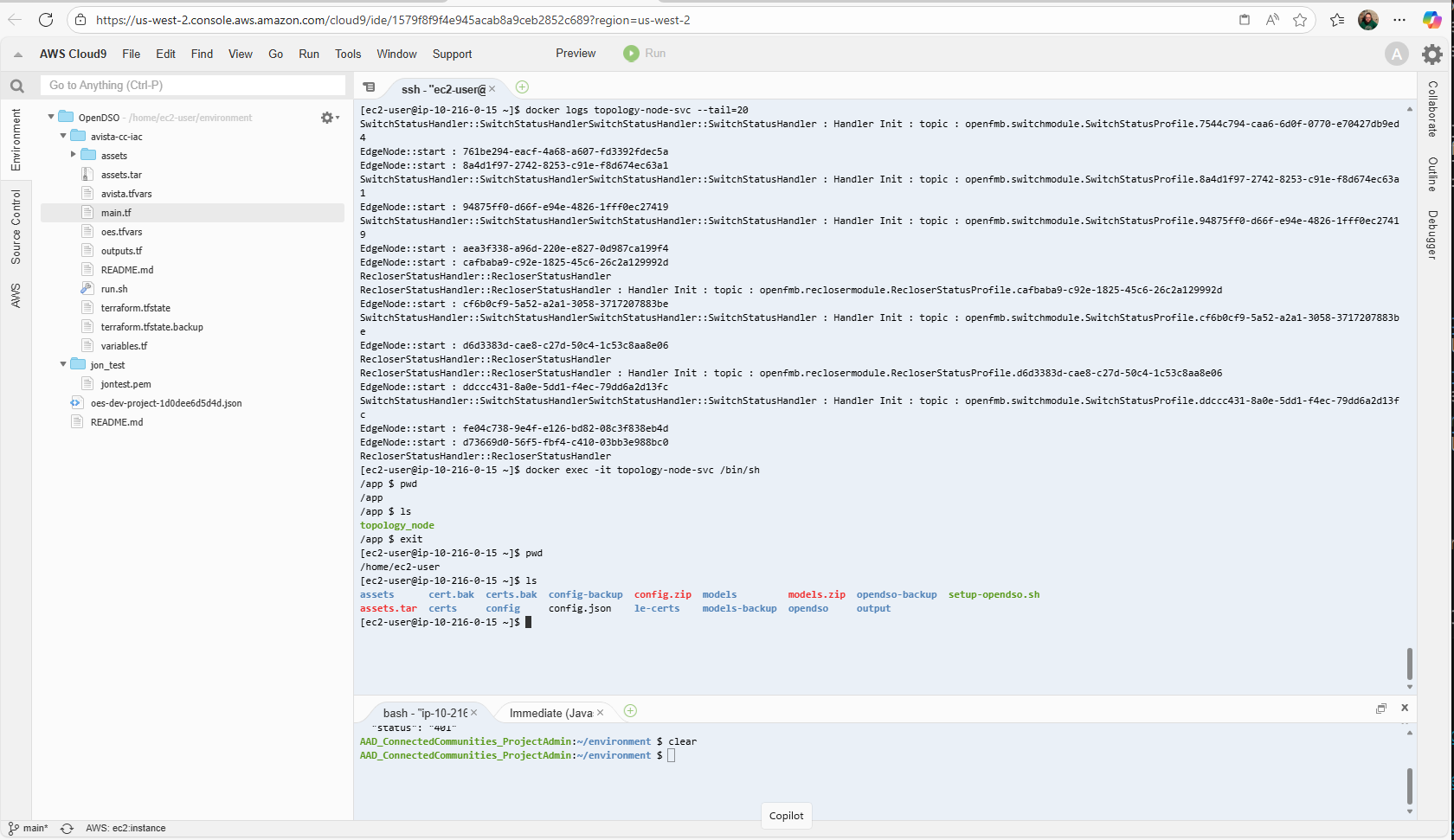
Example: Executing commands inside a container to inspect filesystem
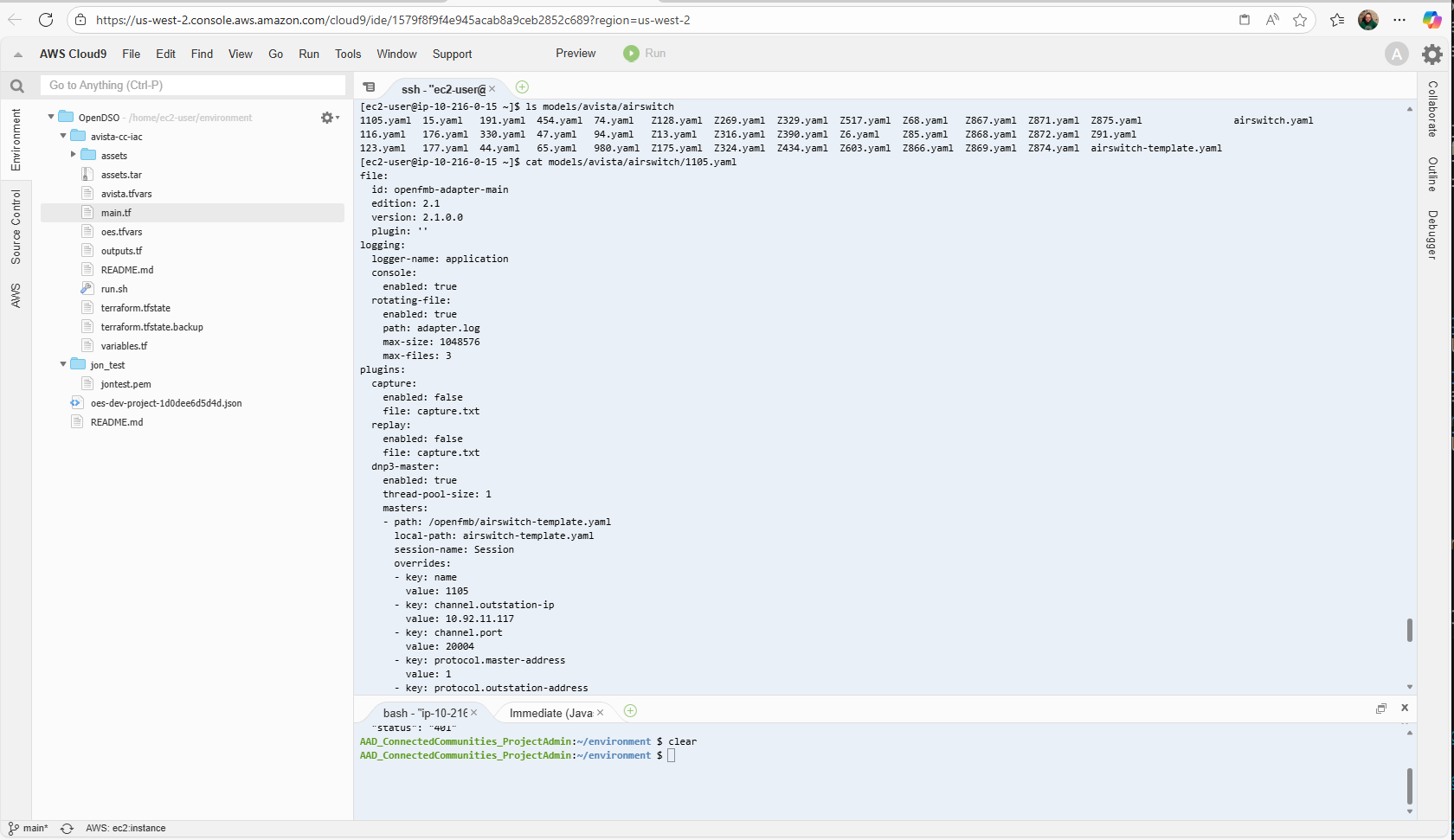
Example: Viewing OpenFMB adapter YAML configuration
Debug Container That Won't Start
# Override entrypoint to keep container alive
docker run --rm -it --entrypoint /bin/sh topology-node-svc:latest

# Or override command
docker-compose run --rm --entrypoint /bin/sh topology-node-svc

# Check what would run
docker inspect topology-node-svc | jq '.[0].Config.Cmd'
Copy Files From Container
# Copy topology resources file out
docker cp topology-node-svc:/resources/config.yml ./test.yml

# Copy entire directory
docker cp topology-node-svc:/resources ./test
Monitor Container Events
# Watch Docker events
docker events

# Filter by container
docker events --filter container=topology-node-svc

# Watch compose events
docker-compose events
Best Practices to Avoid Issues
- Use specific image tags - Never use
latestin production - Set resource limits - Prevent containers from consuming all resources
- Use health checks - Ensure dependencies are ready
- Test builds locally - Build and test before deploying
- Clean up regularly - Remove unused images and containers
Quick Reference
Most Useful Commands
# Check status
docker ps -a
docker-compose ps

# View logs
docker-compose logs -f <service>
docker logs -f <container>

# Restart service
docker-compose restart <service>
docker restart <container>

# Rebuild
docker-compose build --no-cache <service>
docker-compose up -d --build <service>

# Clean up
docker system prune
docker volume prune
docker-compose down -v

# Debug
docker exec -it <container> /bin/sh
docker inspect <container>
docker stats
Next Steps
- For local deployment issues, see Local Troubleshooting
- For production issues, see Production Troubleshooting
- Return to Troubleshooting Overview